
In short
Projects sits on the Plus and Advanced plans and does report profit per job, once every transaction has been assigned to one. Budget for the assigning: it is manual, it happens after the fact, and it is where most solo setups quietly stop being accurate.
In this guide
Can QuickBooks do job costing? Yes, with caveats that matter a lot if you are a solo contractor working out of a van. This is the practical guide: how to set job costing up in QuickBooks Online, where it genuinely works, where it breaks down for small trade operations, and how to close the gap it leaves. If you have already decided QuickBooks is not the answer and want alternatives, that is a different article: why QuickBooks falls short for solo contractors, and what works instead. This one is for people staying on QuickBooks and wanting the most from it.
Can QuickBooks Do Job Costing?
Yes. QuickBooks Online can track income and expenses against individual jobs and report profitability per job. The machinery is called Projects, available on the Plus and Advanced plans, with class and location tracking (also Plus and Advanced) as an older alternative approach. Set up properly, you can open a project and see its income, its costs, and its margin.
Which plan you need, at Intuit's list prices (QuickBooks pricing, prices checked October 2026; Intuit often runs a discount for the first months):
| Plan | List price | Users | Projects and class tracking |
|---|---|---|---|
| Free | $0/mo | 1 | No (2 invoices a month, 1 bank) |
| Simple Start | $38/mo | 1 | No |
| Essentials | $85/mo | 3 | No |
| Plus | $140/mo | 5 | Yes, "Track project profitability" |
| Advanced | $340/mo | 25 | Yes, plus advanced project financials |
QuickBooks Solopreneur (Free and Lite, $20/mo) is a separate product for single-owner businesses: it covers invoices, receipts and mileage, but it does not list Projects or job tracking.
The caveats are not about whether the feature exists. They are about what it takes to keep it fed, which is where solo trade operations come unstuck. More on that below.
How to Set Up Job Costing in QuickBooks Online
The Projects route is the cleanest for a contractor:
- Turn on Projects. In your account settings, enable the Projects feature (you need Plus or Advanced).
- Create a project per job. One project for the kitchen refit, one for the rewire, one per job you want costed. Attach the customer.
- Tag everything to the project. Every invoice, every expense, every bill, and every time entry needs the project selected when you enter it. This tagging is the whole system; anything untagged is invisible to the job.
- Enter your time. Add time entries against the project, with a rate, so labor appears as a cost. If you have no payroll, use a consistent internal rate for your own hours.
- Read the profitability report. Each project has a profitability view: income minus what you tagged. That is your job costing output.
Classes work similarly on Plus and Advanced (tag transactions with a class per job), but Projects is purpose-built and easier to read.
Where It Breaks for Solo Trades
Set up on a screen, this looks tidy. On a real trade week, three things break it:
- Everything is manual entry. Each materials receipt has to be typed in, or photographed and then coded, and assigned to the right project, after the fact. The system is only as complete as your discipline on a Friday night.
- It happens at a desk. The cost happened at the supply house counter at 8am. The entry happens at a laptop, days later, when the second parts run has already blurred into the first. The gap between those two moments is where costs go missing.
- Your own labor slips through. With no payroll, your hours only become a job cost if you consistently enter time with a rate. Most solo contractors do not, so every project report flatters the job.
None of this is a QuickBooks bug. It is a workflow built for a business with a bookkeeper, applied to a business where the bookkeeper is you, in a van, at the end of a ten-hour day.
The Receipt-to-Job Gap
Strip it down and the core problem is one step: getting the receipt into the job. QuickBooks can hold job costs beautifully once they arrive; it just has no good way for a tradesperson to capture a cost at the moment it happens and land it on the right job. Its receipt capture can read a photographed receipt, suggest a category and match it to a bank transaction, but the per-job assignment, the part that makes it job costing, is still on you, usually later, from memory.
That is exactly the gap a receipt-first workflow closes: capture the receipt when it is in your hand, tag it to the job while you are standing on it, and the costing does itself. The method is laid out in how to track job costs from receipts.
Using VanReceipts Alongside QuickBooks
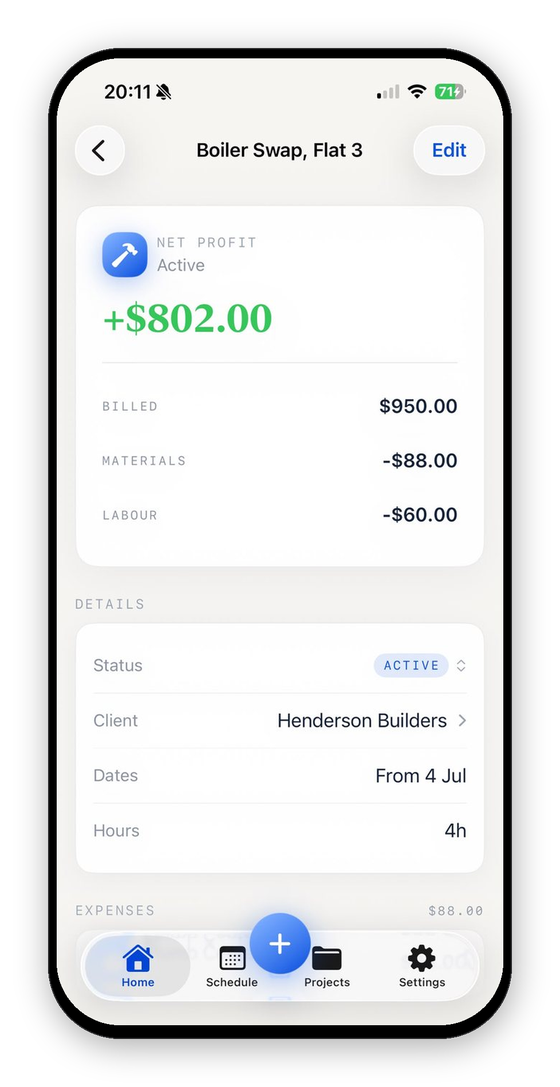
This is a complement, not a rip-and-replace. VanReceipts does not connect or sync with QuickBooks; it runs next to it, and its CSV or Excel export is the hand-off. Plenty of tradespeople keep QuickBooks for what it is good at, bank feeds, tax categories, the accountant's view, and use VanReceipts as the job money layer (estimates, invoices, receipts, mileage, profit):
- In the van: send the estimate or invoice from the job, scan each receipt as you get it, and log mileage (pick From and To and the app works out the distance, or type it). With Pro, cloud AI reads the whole receipt, every line item included. You confirm the read and pick the job it belongs to. Log your hours at your rate.
- Result: live profit per job, with nothing typed up at a desk, plus a clean dated record of every receipt. Export a period from Accounting (income and expense files with a net profit summary, plus a mileage file) for whoever keeps the QuickBooks books.
VanReceipts is an iPhone app. Free to make and send invoices and estimates. Pro is $14.99 a month or $99.99 a year, with a 3-day free trial on the yearly plan, and adds AI estimates, every template, quote and pay links, payments, receipts, mileage and job profit.
QuickBooks answers the IRS's question. VanReceipts answers yours, what each job made. Together they cover both without double work, the same split we describe in bookkeeping software for the self-employed trades.
When to Switch Approach
Stay with QuickBooks Projects if you have office time in your week, someone who enjoys the bookkeeping, or an accountant feeding it for you, and you reliably tag everything. Add a receipt-first job layer if you are the one in the van and your project reports keep coming up incomplete. And if you find you are only using QuickBooks for job costing and dreading it, read the alternative piece, because you may not need the heavy end of it at all. The underlying principles, what counts as a job cost and why your own time must be in, are in the complete guide to job costing.
What did that job really make?Profit and margin for any job in seconds.FAQ
Can QuickBooks Online do job costing?
Yes. The Projects feature on the Plus ($140/mo list) and Advanced ($340/mo list) plans tracks income, expenses, and time per job and reports per-project profitability. The catch is that every cost must be manually entered and tagged to the project, which is where solo trade operations struggle.
How do I set up job costing in QuickBooks Online?
On Plus or Advanced, enable Projects in settings, create a project per job, then tag every invoice, expense, bill, and time entry to its project as you enter it. The project profitability report then shows income minus tagged costs for each job.
Why is my QuickBooks job costing inaccurate?
Almost always missing inputs: receipts that never got entered, costs entered without a project tag, and your own unlogged labor. The report can only show what was tagged to the job, so a few missed receipts and untracked hours make every job look better than it was.
Do I need QuickBooks for job costing?
No. QuickBooks is excellent bookkeeping with job costing bolted on via manual entry. If per-job profit is what you mainly want, a receipt-first job costing app gets you there with far less typing, and can run alongside QuickBooks rather than replacing it (VanReceipts hands off by CSV or Excel export, not a sync).
What to Do Next
QuickBooks can hold your job costs; the hard part is getting them in. Fix the capture, scan the receipt to the job at the moment it happens, and whichever system holds the books, your per-job numbers will finally be real.
Download VanReceipts on the App Store and close the receipt-to-job gap on your next job.